Saturday, March 7, 2020

Google Apps for Math

I've been absent from the blog for way too long. We all know how life gets. But there are so many great new topics and updates that I hope to get back to it and stay with it.

Last Saturday, Leap Day 2020, I was honored to share about using Google apps in math at the Greater San Diego Math Council Conference. It was a great day, where I got to learn from Jo Boaler and Robert Kaplinsky.

Here is my presentation on using Google Apps in Math. Links back to amazing resources curated from Alice Keeler, John Sowash, Eric Curts, and Christine Pinto. Definitely follow them for their amazing resources.

Tuesday, May 8, 2018

Something New for Mother's Day Gifts: Make an App!


Share this code with your students and then have them make changes to make it their mom's favorite things. Go to Bitsbox.com/go 

If you'd like to share the app in a card, share this Google Slides file with your students. Have them add the screenshot and QR code from the app. Print it out, fold, and write a nice message inside.

Mother's Day Card Template - Go to File: Make a Copy to use the file.

If you need to make accounts for the class to save their apps, go to https://bitsbox.com/tools/

Note: Bitsbox is a subscription service. There are quite a few options that students can do for free. I do subscribe to this but I don't get any compensation for posting. I just like it :) 

Thursday, January 4, 2018

Embed Code Now Available in Google Sites

Google just rolled out the ability to embed code into the new Google Sites. The first thing I thought of was that this will be great to share Stop Animation projects using Google Slides.

See my previous post about creating Stop Animation - Google Slides to Stop Animation.
Take the published embed code and add it to a Google Site.


Find the timing for the slides in the code - delayms=1000 and change it to a faster transition. I usually start by trying at least 200ms. That would be 5 slides per second. (MS is milliseconds. 1000ms equals 1 slide per second. The default is usually 3000ms - 3 seconds per slide.)


Wednesday, August 2, 2017

Goose Chase Edu

Goose Chase, an amazing app for digital scavenger hunts, just released an EDU version for schools, making it even better and easier for teachers.
Goose Chase 

New Educator Free Accounts

The new Educator Basic Plan allows you to run an unlimited number of team games with an unlimited number of class sections. No need to complete a request form or wait for approval from the Goose Chase team! You can have unlimited number of games and classes, but run just one live game at a time on the free subscription. It's super easy to run a team game, and you can have 5 teams participating at a time. Great collaboration!

If you need more, the Educator Plus account is very reasonable at $49 per year. That upgrades you to unlimited number of simultaneous live games, 10 teams per game (team games), or 40 participants per game (individual games).


New Library of Game Ideas!
This is amazing! Check out the library to see how other educators have used Goose Chase with their students. Copy the game and edit it in seconds to fit your class! Goose Chase EDU Library


Mission Feedback
One of the cool things about Goose Chase is being able to follow the game in real time and check on submissions. You can give bonus points (+ or -) or delete submissions but we haven't been able to give feedback as to why. Now we can! With the new notifications feature, you can provide feedback to participants in real time or after your game. Giving you the opportunity to communicate why a submission was deleted, how they can improve, or even just how great they’re doing!

My Games
The first full class game I did with Goose Chase was a field trip to the San Diego Zoo. It was a huge success! The kids had fun finding the missions and adding photos or answering questions. Since I had a parent chaperone or two with each group, it was easy for them to work as a team. It was great to see the submissions coming in! Student teams can see the other teams' photos but cannot see their text answers.


We've also done team building and some math games. Here's a submission from a geometry game. (He's pointing to the correct shape for the mission.)


With the new library, I started thinking of all sorts of other ways to use Goose Chase. How would you use it? Share your ideas in the comments!

Updated to add: How I set up team accounts - 
I've had a couple questions on how to setup team accounts. This is how I do it to manage accounts. I setup the five team accounts at the beginning of the year and we reused them for each game throughout the year. Team members could change throughout the year, they just changed color login. 

SetUp Instructions Same in Link above


Monday, July 24, 2017

Bitsbox Presentation Follow Up #ISTE17

On June 26th, I was thrilled to present at the STEM Playground at ISTE17 in San Antonio. It was the 3rd time I had attended ISTE, having been to San Diego in 2012 and Philly in 2015. I had submitted a proposal to share about how I use coding in content areas with my 2nd and 3rd grade classes. One of the programs I use is Bitsbox. It's a subscription based text coding program that my kids love!
For this presentation, I focused on the free resources available to educators. I shared my slide deck in a previous post. In it, I discuss how coding with Bitsbox supports close reading, attention to detail, and can connect to many of the subject content standards in ELA, math, science, art, music and more!


One of the exciting things that happened, was that Bitsbox was at the Start Up booth at ISTE. I was thrilled to meet the people who created this amazing resource. I was able to meet Anastasia, Sadie, and one of the founders, Aidan Chopra. Anastasia, Aidan, and I sat down to discuss the future of Bitsbox and education. They really wanted to know how Bitsbox could support students. We discussed what teachers need, how to share what the code does, how to connect to content standards, and how to package resources to make it easier for us. It's important to them to help those of us teachers who don't have any background in coding so we can give this opportunity to our kids.


I'm thrilled to be able to connect with such a responsive company. The week after ISTE, Anastasia was able to do a Google Hangout with our summer camp program and share how they come up with ideas for apps, how she started coding (hint: she learned using Bitsbox) and answer LOTS of kids questions. This is the second hangout they've done for my kids and it's been so inspiring!


Since our meeting, the folks at Bitsbox have shared a new format for the Classroom Boxes. These are sets of programming cards with support for teachers so we know the coding concepts each box is focused on. Like Box 1 below is all about using coordinates. Definitely put these on your wish list for Back to School! (This is not an affiliate link - I don't get anything from Bitsbox for sharing. I just like the company.)


Sunday, July 23, 2017

Camp Innovation - Huge Success!

4 Amazing Teachers + 4 STEAM Playgrounds + 140 kids + 2 weeks = Tons of Fun!

Summer camp sponsored by The San Marcos Promise.
http://thesanmarcospromise.org/leap


STEAM Playground:
Students worked on utilizing their natural curiosity to explore, learn, and create in the STEAM Playground. Students rotated through the 4 STEAM Play Areas that included coding, robotics, Makey Makey, LittleBits, circuitry, design challenges, and more!  After students  explored the different STEAM Play Areas rotations, they got to have flexibility and choice in which area they wanted to dive deeper in their learning.


Saturday, July 22, 2017

Empowering Students - Tech Leadership Teams

Students as Leaders - Recently, I've been asked a few times about our Eagle Tech Squad - this is our student technology leadership team. I'll try to put as many of the resources here to help others interested in starting a program. Feel free to contact me if you have specific questions.

Background: Several years ago when we began our 1:1 chromebook rollout, I was one of 4 classes who had a class set of devices on our campus. I decided to start an after school tech class to offer more of our kids opportunities to learn about technology. I did not have all the answers, in fact, most of the time the kids teach me about new tools and great ways to use them.

Student Using Chromebook
As more devices have become available on campus, we've had a need for more teacher and student support. Two years ago, one of our after school classes, led by Christine Dixon, began a tech leadership focus. They started to create a website and some tutorials. This year, two of our schools formalized the process of selecting our leaders and began a before school tutoring session, led by the Tech Squad leadership students.


So here is what we did: First, Marla Rosenthal, from Discovery Elementary, and I met several times during summer 2016 to research other tech leadership programs and decide our focus. Many of the programs we found were geared to middle and high students but we were convinced our elementary students could do it too. We found this SWAT Team program from North Star Elementary. We also found this high school help desk example from Burlington High School. More info here about Burlington.
And amazing resources came from Mari Venturino and Alicia Johal of Mar Vista Academy


The Plan: We created a website to share our vision using ideas from all these sources and with our schools in mind. Here is mine for San Elijo Elementary Eagle Tech Squad Recruitment Website Link  My school took a little longer to get approval so my applications were pushed back till October of 2016. Interested 3rd - 5th grade students filled out the application and created a resume. Seriously, nothing is cuter than an elementary student's resume - you HAVE to include this in your process. Student Resume Sample 


This first year I received about 26 applications and resumes. Most of the students were kids I knew from previous tech classes or my own students. It was easy to accept them all and get started. We met once a week after school. The first couple meetings we went over ideas we had for the program. We created a list of topics we thought were needed based on student suggestions and teacher requests that I had gotten. I had the kids pick areas they would like to work on and create tutorials and resources for. I also gave them a tech training link to complete that I found from James Sanders: Zero to Ninja Google Docs Challenge  We added the resources to a Google Classroom group and they got to work.

Tech Squad Tasks: Student leaders started researching and created a website that will continue to grow with resources to support students and teachers in technology. They added links, slides, and screencasts to help. They also will go into classes or meet with teachers on their recess of after school times to help. We created a resource of Google shortcuts that we printed out and delivered to each teacher with chocolate :)

Hour Of Code: Our first big task was to support the Hour of Code activities at our school. As a school, we have been taking part in Hour of Code since the first year, but many teachers still feel hesitant doing it on their own. Eagle Tech Squad students were able to visit classes and help get things going, especially with the younger classes. We also started our before school tutorials that week. We had leadership students sign up to help in the half hour before school starts where kids are on campus. I had my classroom open and they helped with the coding challenges for Hour of Code. 

Open Tech Time Begins: Our Hour of Code before school tutoring time was such a huge success that my admin team asked if we could continue with it. They offered to cover my duty so I could arrange it so win-win for me! As a group we decided two days a week would be a good amount of time. 

Off Campus Support: We were invited to participate in the local university STEM Saturday program. Most of our Tech Leadership kids were available to come out and build and demo robots with the 4,000 participants that day!


Recognition: Students were given ID badges (pinback buttons I made) and earned badges when they finished the Ninja mini course. Also, we had Tshirts made that they could wear at training sessions. Students really seemed to enjoy their time on the Tech Leadership Team. We completed a reflection at the end of the year and got lots of positive feedback and suggestions for the next year. 


Moving Forward: Year 2 should be pretty interesting. I'm anticipating an increase in the amount of applicants for the team just based on visibility of the program in it's first year. It's going to be tough, but I'm sure I will have to be selective to keep the number of kids manageable. I'm already thinking about how to offer those who don't make the team opportunities to support their classes in other ways. I'm looking for other opportinities for the student leaders to share - including putting in a proposal for them to present with me at SDCUE and maybe even the CUE National Conference in Palm Springs. We've reached out to our local senior center to arrange time to meet with seniors who would like some support with their devices. And we'll be planning a Back to School family tech event at our school. 

All in all, it's been a very positive experience working with kids who are interested in helping others learn more. They have worked hard to research new tools, develop tips, and spent time teaching others. Teachers on our campus have been very open to receiving the student help. I'm excited to keep this program growing and see where it leads. 

If you're thinking about starting an elementary Tech Leadership program, do it! It's awesome!


Sunday, July 16, 2017

SDCUE to You: A Teacher, A TOSA, and a Principal - Divide and Conquer Team Approach to ISTE

SDCUE to You: A Teacher, A TOSA, and a Principal - Divide and Co...: Last week, I (Laurie Anastasio) was able to attend ISTE San Antonio with 2 colleagues. One is a former teaching partner, Marla Rosenthal, who will begin next year as an Innovation Specialist TOSA at her school. We actually met 20 years ago when we were in the same interview group with San Marcos Unified. The other is my admin, Carolyn Kalicki. It was Carolyn’s 1st ISTE convention.

Marla and I attended our first ISTE in 2012 when it was in our own backyard, San Diego. It was amazing and inspiring! Marla and I attended that one together and were in awe of the size of the conference and amount of amazing educators gathered to learn in the summer.

Then, I funded my own trip to ISTE Philly in 2015. It was great but definitely different attending by yourself. The hardest was not having someone to share things with or go to dinner with. Last year, while #NotatISTE Denver, Marla and I booked our hotel while following the #ISTE16 twitter feed. We just HAD to be there!

Having three of us there was amazing! We were able to discuss our plans leading up to the conference, set goals for what we wanted to learn, and divide up the information overload. I was definitely there to network, meet people I only knew from Twitter chats, and gather new ways to use technology in our classrooms that I could bring back and share with my staff. Carolyn found quite a few leadership sessions and is excited to set some school wide goals and bring resources back for our staff.

It was not Marla’s first ISTE rodeo thankfully either, and attending as the Innovation Specialist had her wearing laser focused glasses. Her goal this trip to ISTE was to see all things Makerspace/STEM related and she did just that. From the poster sessions and playgrounds to BYOD sessions and spending time in the vendor hall looking at different resources, Marla kept her new position in mind and gathered tools to take back to her school.

It was my first time presenting in a playground and also volunteering in the Google booth. There, and throughout the ISTE sessions, meet ups, and random connections in lines, I met people deeply committed to our profession and equally committed to learning something new. Learning is our business, and as Jennie Magiera stated in her keynote on Tuesday, it’s who we are. I was profoundly touched by Jennie’s keynote and the importance of sharing our ‘untold stories’. As she said, “We are wizards and this is our convention!”

I’ve attended ISTE solo and this time with a team. It is so much better with a team. We were able to see things from different perspectives, sometimes attending the same sessions, visiting the same playgrounds, or listening to the same keynotes, and other times splitting up and sharing resources. Attending with others, you have someone to commiserate with about your aching feet and share with about the one thing that you will for sure take back to school. As we come back to our real life, they are the people who can help you share the exciting new learning and spread it to others. I highly recommend everyone attend an ISTE Conference and Bring a Friend!

Laurie Anastasio

Gen Ed Teacher at San Elijo Elementary School and Tech Lead. Laurie has been teaching for since 1997. She is a Google Certified Trainer and loves sharing about technology. She writes a blog at http://amazingdaysatschool.com/  Find her on Twitter @LaurieAnastasio

Marla Rosenthal

Innovation Specialist Teacher on Special Assignment and Tech Lead at Discovery Elementary School. She is a Common Sense Education Certified Digital Citizenship Educator. Marla has been teaching since 1997 and is very active on Twitter as @TeachSeuss.

Carolyn Kalicki

Principal of San Elijo Elementary School and former teacher and Intervention Specialist. Carolyn established the San Elijo Elementary MakerSpace last year and is committed to our students having experiences in all aspects of STEAM education.

Friday, June 23, 2017

#ISTE17

I'm off to my 3rd ISTE conference, this time in San Antonio, TX. On Monday, I'll share how I use coding within the content areas in class. Presentation notes here:


  • Monday, June 26, 8:00–11:30 am CDT (Central Daylight Time)
  • Building/Room: Park View Lobby

Sunday, May 28, 2017

Managing All Those Lists!


Do you ever find yourself drowning in lists? Where did I put the class list? The field trip list? Who returned school photo orders? Who got student of the month so far?

The answer of couse, is a spreadsheet. That may seem like a no-brainer, which is why I haven't blogged about it, but I have a few tips that have worked for me and may work for you.

  1. Use the same spreadsheet for all the lists. Just make a new sheet within the file when you need a new list. That way you always know where to find it.
  2. When you need a new check off list, just duplicate the original sheet. Then you have all the kids names, You never have to type a list again.
  3. Bookmark that spreadsheet right at the top of your screen. It will always be handy.
  4. Add student names when you first set it up with first and last in separate columns so you can sort either whenever necessary. 
  5. Advanced tip - use conditional formatting to help you visualize info.


Here's a sample file with some ideas to get you started. Link Here 

Sunday, May 21, 2017

Creating Bulk QR Codes for Student Work

So Open House is coming up and students have lots of work to share. Maybe you have some cute videos or recordings of student reflections. Here's how you can create a class set of QR codes quickly in a Google Sheet.

Make a copy of this sheet: QR Code Creation Spreadsheet
Add your student names to column A
Paste whatever links or info you need the QR code to share in column B
Copy the formula in column C by selecting C2, hover over the tiny blue square in the lower right corner, and drag it down to fill as many rows as you need.
This is the formula to use:  =image("https://chart.googleapis.com/chart?chs=150x150&cht=qr&chl="&B2)


The QR codes will be displayed as small or large as the row size. To change the size of all the rows at once, select the top left cell, some people call the awesome box. That will highlight the entire sheet. Any changes made to a row or column, will be done to every other row and column.


You can hide the link column if you want. Then just print the spreadsheet. 

Monday, November 14, 2016

Coding Math Facts Practice


Do your students like to play games? How about make their own games? But you need them to practice math facts. What if they could code their own math game to play?

Bitsbox has an Educator page with free lessons, including math practice. I took the Billy Goats Gruff addition facts code and then changed it to my own rainforest theme. Your students can take the code and create their own theme too!

Rainforest Multiplication Code
Rainforest Multiplication Coding App


Have students go to https://bitsbox.com/hoc2016.html and start there.

Sunday, October 2, 2016

Google Expeditions - The WOW Factor!


Yesterday, I was lucky enough to attend EdCampSD in Escondido and learn from Jen Roberts as she shared Google Expeditions. I had read about Expeditions, which was released shortly after my Google GEO Teacher Institute in June 2015, but hadn't tried it myself.


- I had actually participated in a web meeting with an Expeditions team member this past spring with two of my kids. He interviewed them about what they were interested in exploring in Antarctica. It was pretty cool to have a connection to Expeditions and I've been really excited to get started.

So Jen pulled out a few Google Cardboard boxes and had us all download the Expeditions app to our phones or ipads. Out of about 30+ people in the room, we had about 8 viewers so most of us just used our devices without the viewer.

First take away - We don't need to use cardbooard or a VR viewer to do an Expedition! It works just fine full screen on our phones or tablets. The device just needs to have a gyro.

Next, she had me set up as a leader on my ipad. It's as simple as clicking LEAD on the app. I searched for an Expedition - chose an Underwater Excursion, downloaded it - and off we went. Others in the room opened the app, found my name and clicked JOIN.

Teacher View - Starting Expedition
Student View - JOIN Teacher's Expedition


Seeing the teacher and student view at the same time was exactly what I needed to understand how this works and be ready to share with my class and my team mates. I can't wait! We are going on some Expeditions! Next stop - Mt. Everest! or Yosemite! or the Googleplex! or Stanford! or Antarctica! So many choices!!

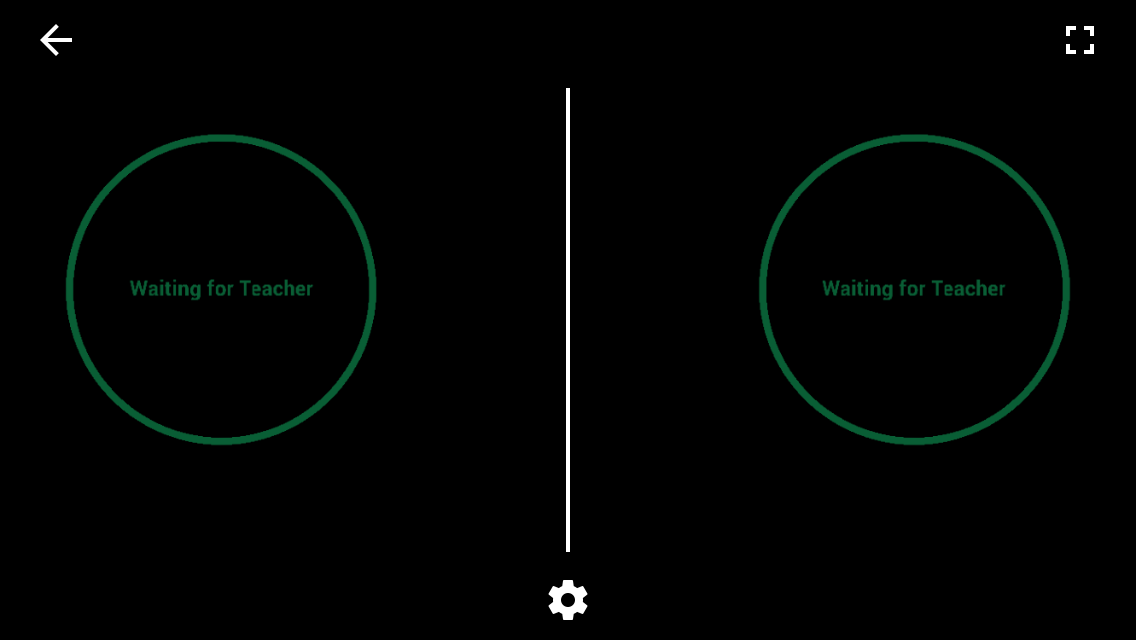
Student View - Waiting for Teacher to Press Play

Student View - Toggle Between VR Viewer and Full Screen


Student View - Full Screen

Teacher View - Swipe cards to the left for next scenes

Teacher View - Select Feature to View. Happy faces show where students are looking


Student View - Arrow shows where the teacher wants you to look


Student View - Target Feature

Student View - Cardboard Mode
While it would be pretty fun to have a class full of VR viewers, knowing that this is possible without is exciting! I have 7 ipads in our class and can probably borrow others from colleagues. We could set up a list of those on our site willing to share and schedule Expeditions to some of these amazing places!
Thank you, Jen, for sharing this amazing resource!

Monday, August 22, 2016

School 2 Home Learning Connection


Letter to my Class Families this year:

"Why I'm Not Doing Homework This Year -

My intention is to make sure there is enough time in our students' days for family time and activities and I want to balance that with time for reading and some real world math and writing.

I'd like students to focus mainly on reading everyday so they have a comfortable, calm space at home to enjoy reading. For the other areas of math and writing I will share options for exploration. This will give parents an idea of the areas we are working on in class. If something comes up at home that is a better "real life" experience with math or writing, I'd love for your student to have that time and opportunity instead. (Here is one article that discusses thoughts on student choice and time spent on homework. Link here)

There are links to a form on the side for your student to share what he or she is working on. If he or she is working on an online file, have them put the link to the url in the form so I can access it. (Here is a link to make a copy of my form.)

If family time and extracurricular time prevents students from getting to these activities, I understand. We will be working hard everyday in class and I think students should have time for other things in their lives too.

Class Dojo points will be earned for sharing things they are learning and trying challenges. If your student is pursuing an area of interest that they would like to share, have them tell me about it in the comment section of the form and I'd love to give them Challenge Accepted points and share in their interest.
​
However, if your student decides not to use their time wisely in class, then completing that class work might be required and I'll let you know.

Basically, what I'm saying is anything beyond the reading is optional, but I will acknowledge and support their practice and extra interests. There will be projects that may require some work at home throughout the year."

Each week I will post the topics we are learning in class and ideas for games and exploration if the students would like some resources. We also often have topics that come in discussion that we'd like to know more about. We'll be coming up with an "I Wonder" board to post topics and things we discover on those topics. 

Wednesday, August 10, 2016

Collaboration: Sharing Google Forms


Teachers are so amazing about sharing! It goes under the category of "why recreate the wheel?" most of the time. I share with you, you share with me, our lives just got easier and both teachers and students win!

This is why having a wonderful PLN that includes teachers on Twitter that I've never met has been so amazing! Recently, I was reading a blog post from Ms. Drasby (Google Forms Supports Spelling Mastery) where she shared a copy of her Google Form. I had tried to find a way to do that for over a year with no luck. 


I replied and asked about it and she wrote up the procedure in a blog post: Google Forms Force a Copy. It's super easy and simple but if you don't know the trick, it won't work like it didn't for me for so long! It's definitely worth the few minutes to check out her blog and learn the trick!
Google Forms Force a Copy

Now, I am so excited about being able to make forms as a grade level team and share the workload. We can share forms resources just like we do with Hyperdocs, Graphic Organizers, and everything else we do as teachers.

Here are a few of my favorites to get you started: When you click on the form link it will force you to "Make a Copy" of the form I created. So you will have your own, not shared with anyone, and your data will be yours alone. Since it's your copy, you can change it however you would like to make it work for you.

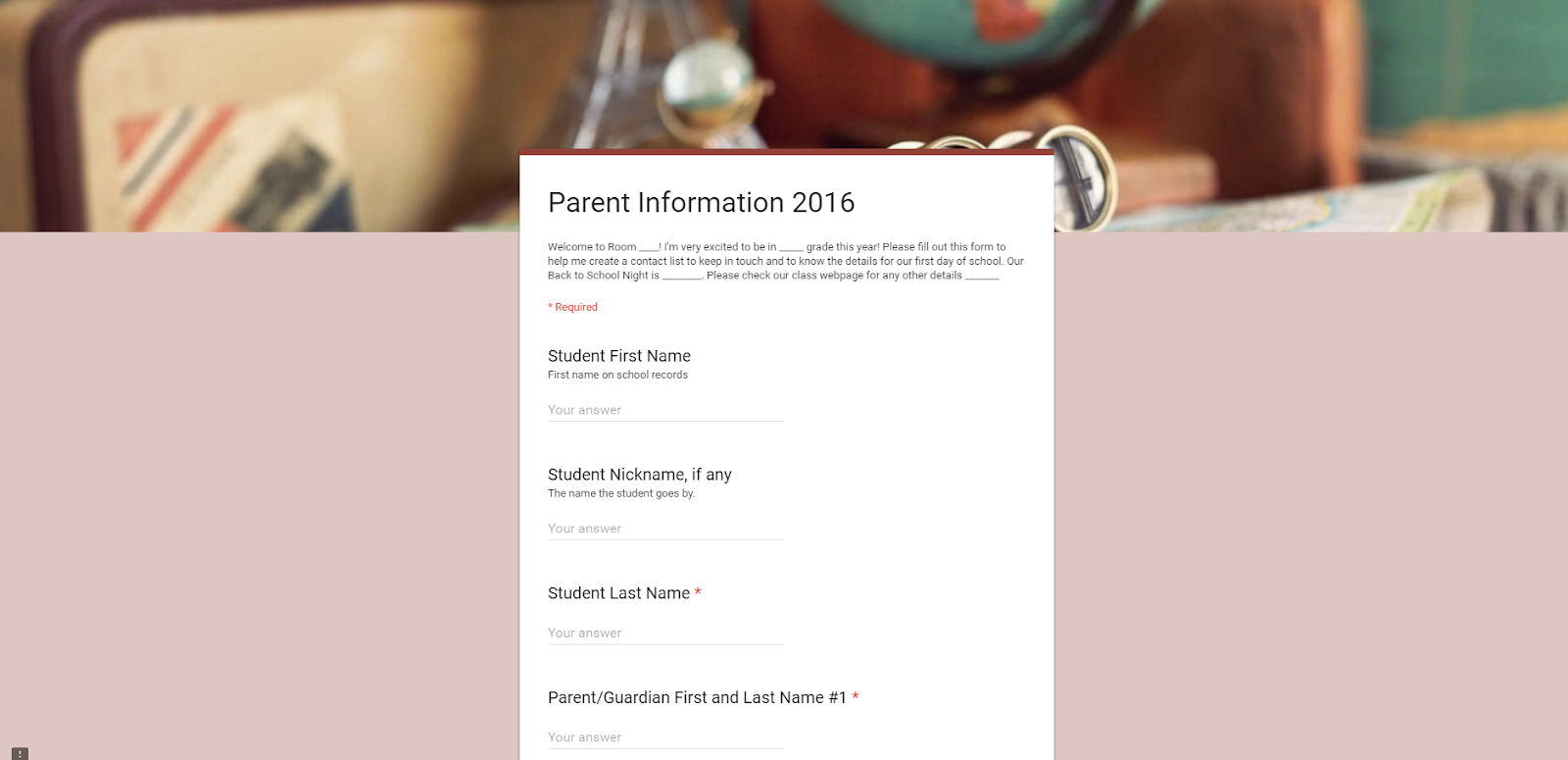
Parent Info Form (Click this link for the Form):
I post this on my website at the beginning of the year and usually get most of the info before school even starts on Monday morning. 

Parent Information 2016.png


Favorite Genre of Books (Click this link for the Form):


<<This one is a good beginning of the year inventory of your students' reading interests.


Here is a spreadsheet of forms my 3rd grade students created to practice multiplication facts. When you click the link, it will copy the form into your drive. There is the tutorial to use Flubaroo to make them autograde. OR, you can turn them into Google Form Quizzes. You will just have to change the answers to multiple choice answers to use Google Forms quizzes at this time.

Multiplication Practice Forms (Click this link)


And here are several other Google Forms to share. 
Click to copy forms and make them your own. Follow the directions above from Ms. Drasby and share your forms too!
Google Forms (Click this link)

Saturday, July 23, 2016

iHelp - Class Jobs


Last year I changed up my job board and set enough jobs so everyone has something to do to support our classroom. Here is my updated job board for 2016-2017:


Originally, I put the icons on library pockets and used craft sticks to choose jobs. That worked quite well. However, this year, I decided I'm going to print this out poster sized and use mini magnets with kids' names or numbers.

I also have a slides file that I will print in preview mode 4 to a page and laminate so students have their job descriptions. 


Feel free to make a copy of any of the files and edit for your use. 

Note:
Icons in this set are from http://www.iconarchive.com/
License: CC Attribution-Noncommercial-No Derivate 4.0
Class Dojo icon is from https://www.classdojo.com/resources/ free decoration pack
Go Noodle Icon is from https://www.gonoodle.com/share art share pack
No commercial use allowed


Tuesday, June 21, 2016

Coding for Kids with Bitsbox


We've been using Code.org resources and blockly type coding since the first Hour of Code. Recently, we started looking into text based programs. Our tech class tried Code Academy's tutorial on Javascript. It's great but then we found Bitsbox! (Bitsbox is a subscription service, but there are many free options starting at https://bitsbox.com/hoc2015.html)


Kids type real Javascript in Bitsbox to create apps from the book, then they change it to make it their own. I love that accurate keyboarding, spelling, and punctuation are reinforced to make the apps work. It's a huge motivation for kids to check their work. If it's not right, the app won't work.
Here's fun simple app bitsbox.com/run.html?b18v3


It also has free lesson plans for teachers to use in most content areas. There is a teacher page with great info. https://bitsbox.com/teachers/

Here's an app they can write to practice their math facts bitsbox.com/run.html?xxdr6


Here is the lesson plan from their website  https://bitsbox.com/pdf/hoc2015/BitsboxLessonPlan2015_Math3-5.pdf

Another thing that I've found is that the company is very responsive. They reply to tweets and emails, help with questions about the apps, and go above and beyond in many ways.

One cool thing was when we were doing a Saturday Codeathon. I wanted a short, fun keynote for the kids and contacted Christie at Bitsbox to see if someone there would do a virtual hangout with us. Next thing I knew their CEO, Scott Lininger, said he'd love to do it. (My lame attempt to record the hangout with my phone https://youtu.be/a7OqJwJ-1g ) They also sent us a box full of fun give away items for the kids in attendance. Super fun! Thanks Bitsbox. We are hooked!

If you do decide to try it out, we would appreciate it if you would use our link. We get credit toward  our next subscription for our class and you get one free Bitsbox.  https://bitsbox.cratejoy.com/refer/Lauri-NQGTWKES