Monday, August 22, 2016
School 2 Home Learning Connection
Letter to my Class Families this year:
"Why I'm Not Doing Homework This Year -
My intention is to make sure there is enough time in our students' days for family time and activities and I want to balance that with time for reading and some real world math and writing.
I'd like students to focus mainly on reading everyday so they have a comfortable, calm space at home to enjoy reading. For the other areas of math and writing I will share options for exploration. This will give parents an idea of the areas we are working on in class. If something comes up at home that is a better "real life" experience with math or writing, I'd love for your student to have that time and opportunity instead. (Here is one article that discusses thoughts on student choice and time spent on homework. Link here)
There are links to a form on the side for your student to share what he or she is working on. If he or she is working on an online file, have them put the link to the url in the form so I can access it. (Here is a link to make a copy of my form.)
If family time and extracurricular time prevents students from getting to these activities, I understand. We will be working hard everyday in class and I think students should have time for other things in their lives too.
Class Dojo points will be earned for sharing things they are learning and trying challenges. If your student is pursuing an area of interest that they would like to share, have them tell me about it in the comment section of the form and I'd love to give them Challenge Accepted points and share in their interest.
However, if your student decides not to use their time wisely in class, then completing that class work might be required and I'll let you know.
Basically, what I'm saying is anything beyond the reading is optional, but I will acknowledge and support their practice and extra interests. There will be projects that may require some work at home throughout the year."
Each week I will post the topics we are learning in class and ideas for games and exploration if the students would like some resources. We also often have topics that come in discussion that we'd like to know more about. We'll be coming up with an "I Wonder" board to post topics and things we discover on those topics.
Wednesday, August 10, 2016
Collaboration: Sharing Google Forms
Teachers are so amazing about sharing! It goes under the category of "why recreate the wheel?" most of the time. I share with you, you share with me, our lives just got easier and both teachers and students win!
This is why having a wonderful PLN that includes teachers on Twitter that I've never met has been so amazing! Recently, I was reading a blog post from Ms. Drasby (Google Forms Supports Spelling Mastery) where she shared a copy of her Google Form. I had tried to find a way to do that for over a year with no luck.
I replied and asked about it and she wrote up the procedure in a blog post: Google Forms Force a Copy. It's super easy and simple but if you don't know the trick, it won't work like it didn't for me for so long! It's definitely worth the few minutes to check out her blog and learn the trick!
Google Forms Force a Copy
Now, I am so excited about being able to make forms as a grade level team and share the workload. We can share forms resources just like we do with Hyperdocs, Graphic Organizers, and everything else we do as teachers.
Here are a few of my favorites to get you started: When you click on the form link it will force you to "Make a Copy" of the form I created. So you will have your own, not shared with anyone, and your data will be yours alone. Since it's your copy, you can change it however you would like to make it work for you.
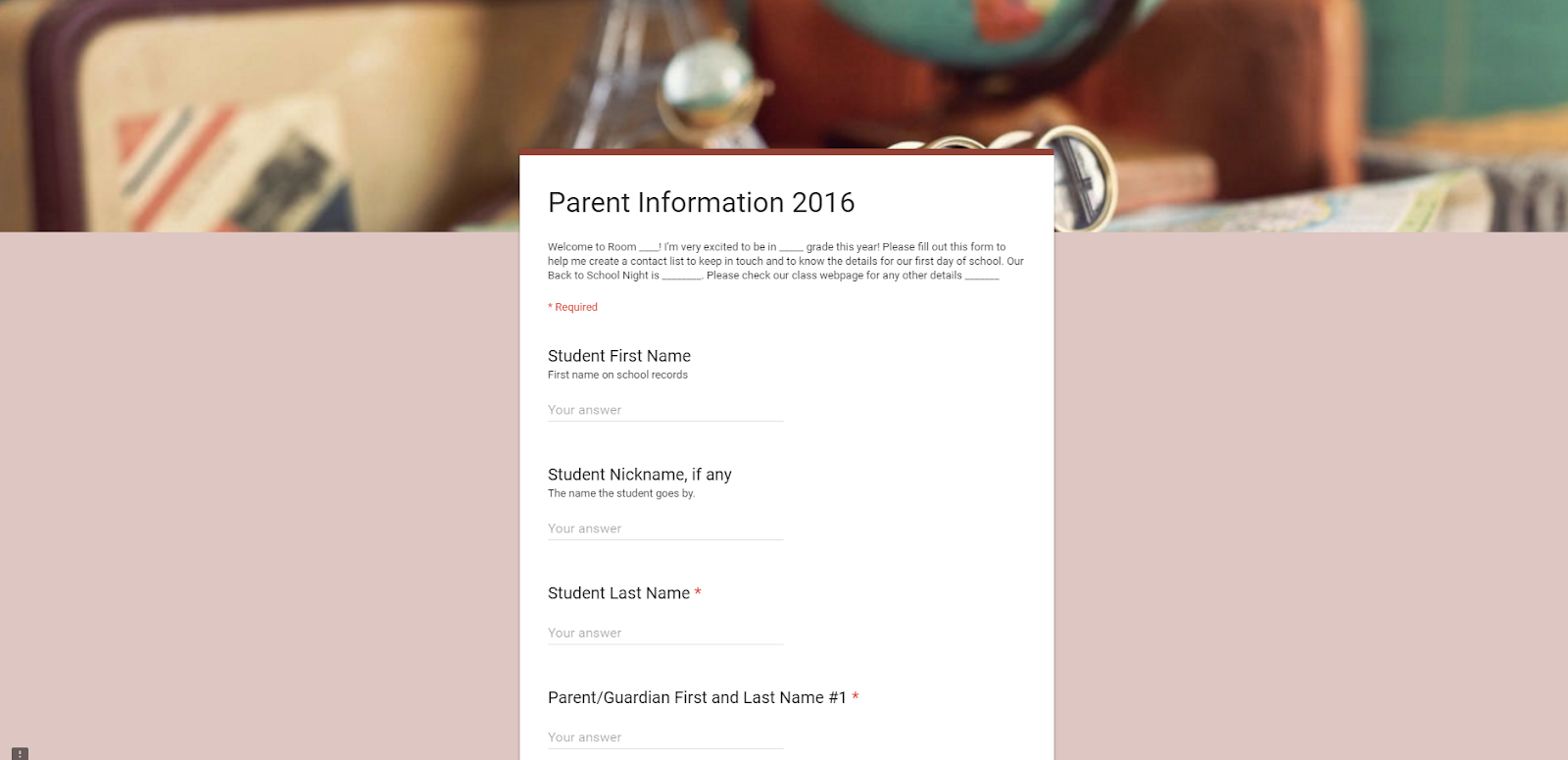
Parent Info Form (Click this link for the Form):
I post this on my website at the beginning of the year and usually get most of the info before school even starts on Monday morning.
Favorite Genre of Books (Click this link for the Form):
<<This one is a good beginning of the year inventory of your students' reading interests.
Here is a spreadsheet of forms my 3rd grade students created to practice multiplication facts. When you click the link, it will copy the form into your drive. There is the tutorial to use Flubaroo to make them autograde. OR, you can turn them into Google Form Quizzes. You will just have to change the answers to multiple choice answers to use Google Forms quizzes at this time.
Multiplication Practice Forms (Click this link)
And here are several other Google Forms to share.
Click to copy forms and make them your own. Follow the directions above from Ms. Drasby and share your forms too!
Google Forms (Click this link)
Saturday, July 23, 2016
iHelp - Class Jobs
Last year I changed up my job board and set enough jobs so everyone has something to do to support our classroom. Here is my updated job board for 2016-2017:
Originally, I put the icons on library pockets and used craft sticks to choose jobs. That worked quite well. However, this year, I decided I'm going to print this out poster sized and use mini magnets with kids' names or numbers.
I also have a slides file that I will print in preview mode 4 to a page and laminate so students have their job descriptions.
Feel free to make a copy of any of the files and edit for your use.
Icons in this set are from http://www.iconarchive.com/
License: CC Attribution-Noncommercial-No Derivate 4.0
Class Dojo icon is from https://www.classdojo.com/resources/ free decoration pack
Go Noodle Icon is from https://www.gonoodle.com/share art share pack
No commercial use allowed

Tuesday, June 21, 2016
Coding for Kids with Bitsbox
We've been using Code.org resources and blockly type coding since the first Hour of Code. Recently, we started looking into text based programs. Our tech class tried Code Academy's tutorial on Javascript. It's great but then we found Bitsbox! (Bitsbox is a subscription service, but there are many free options starting at https://bitsbox.com/hoc2015.html)
Kids type real Javascript in Bitsbox to create apps from the book, then they change it to make it their own. I love that accurate keyboarding, spelling, and punctuation are reinforced to make the apps work. It's a huge motivation for kids to check their work. If it's not right, the app won't work.
Here's fun simple app bitsbox.com/run.html?b18v3
It also has free lesson plans for teachers to use in most content areas. There is a teacher page with great info. https://bitsbox.com/teachers/
Here's an app they can write to practice their math facts bitsbox.com/run.html?xxdr6
Here is the lesson plan from their website https://bitsbox.com/pdf/hoc2015/BitsboxLessonPlan2015_Math3-5.pdf
Another thing that I've found is that the company is very responsive. They reply to tweets and emails, help with questions about the apps, and go above and beyond in many ways.
One cool thing was when we were doing a Saturday Codeathon. I wanted a short, fun keynote for the kids and contacted Christie at Bitsbox to see if someone there would do a virtual hangout with us. Next thing I knew their CEO, Scott Lininger, said he'd love to do it. (My lame attempt to record the hangout with my phone https://youtu.be/a7OqJwJ-1g ) They also sent us a box full of fun give away items for the kids in attendance. Super fun! Thanks Bitsbox. We are hooked!
If you do decide to try it out, we would appreciate it if you would use our link. We get credit toward our next subscription for our class and you get one free Bitsbox. https://bitsbox.cratejoy.com/refer/Lauri-NQGTWKES
Wednesday, April 13, 2016
Using Quizlet
Quizlet.com is a great resource for review, practice, or to pre-assess and get excited about a topic.
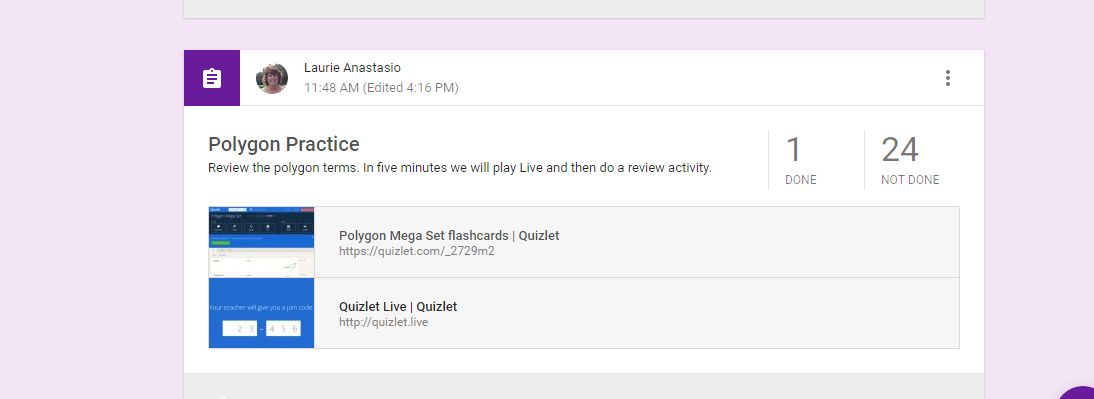
Lots of quizzes are set that you can search for in their shared library, or build your own easily with their images. There is an option to assign to Google Classroom to get the link to the kids quickly.
I had them practice individually with the flashcards however they wanted for 5 minutes - most used Scatter, which is a matching game.
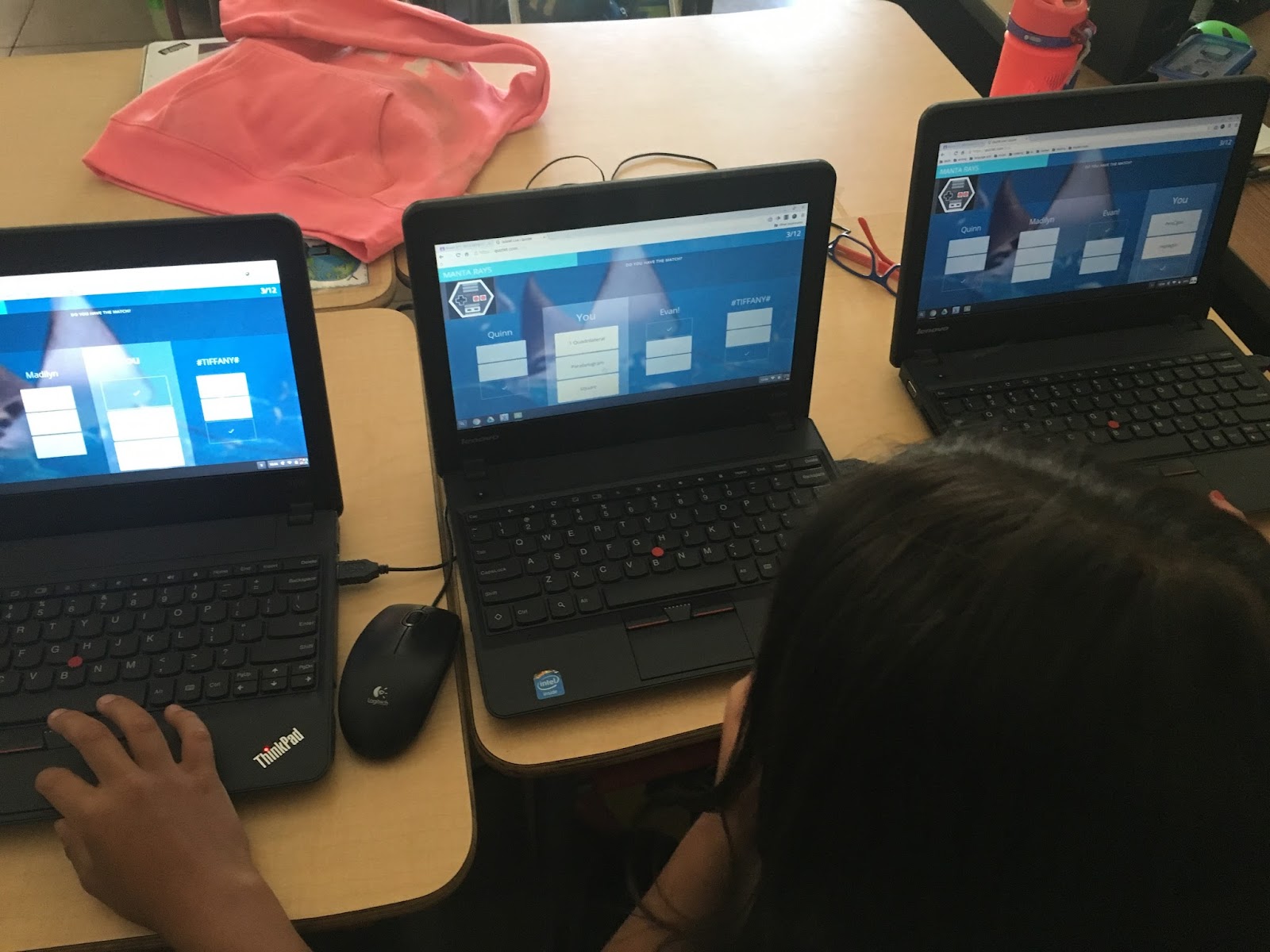
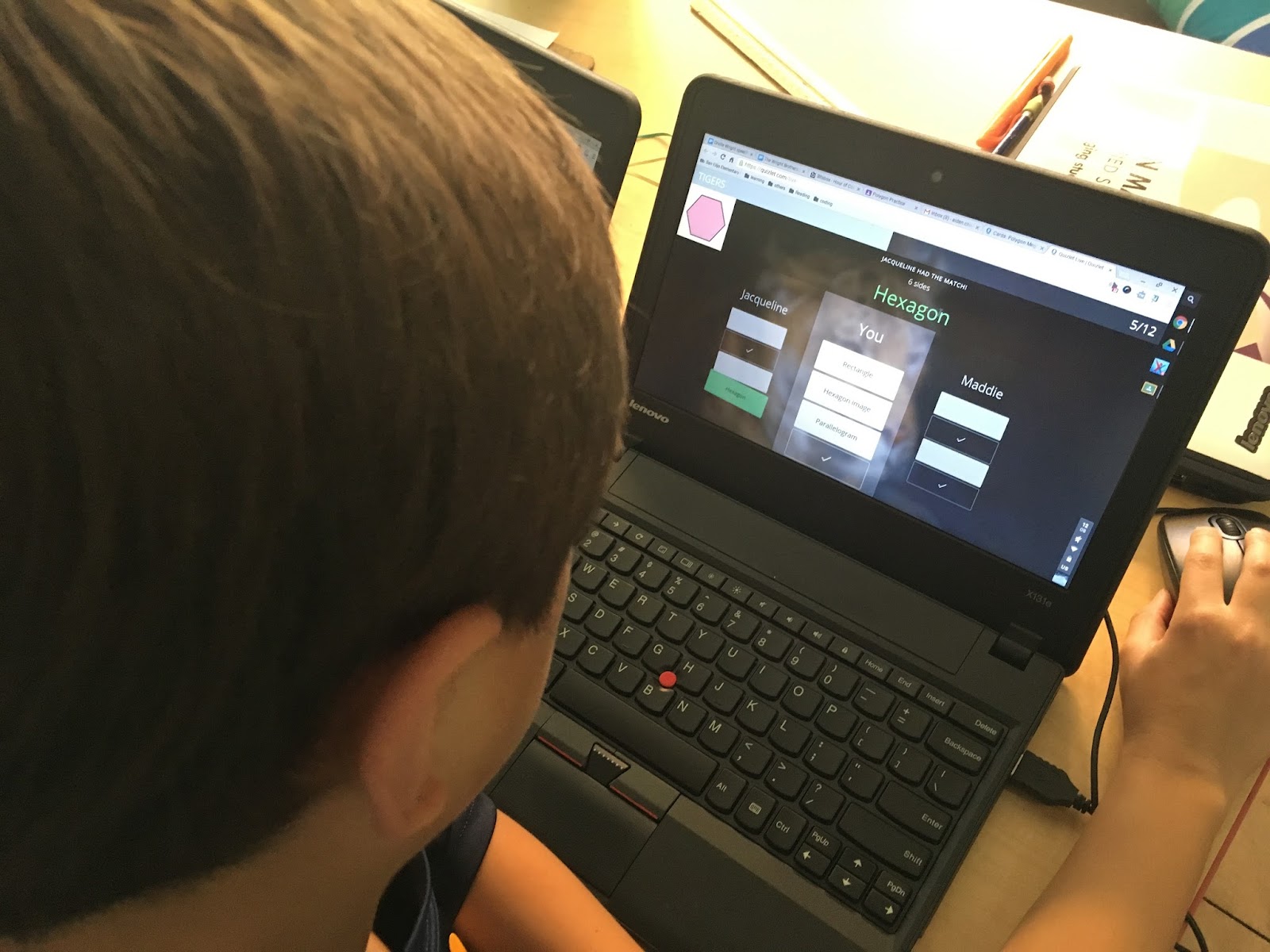
Then we tried the LIVE game. Students went to the LIVE link I gave them, and put in a first name. I started the game. (Live is a choice when the teacher is in the Quizlet dashboard.)
This is the link to the set we did https://quizlet.com/_2729m2
- Students are assigned to random 3 player teams.
- Students move with their device to be near teammates.
- Each student sees a set of answer cards which is only a third of the possible answers.
- As a question comes up, they may or may not have the answer in their set. It could be on a teammate’s set. They need to talk to each other to see who has it.
- As they answer correctly, their team advances. If they answer incorrectly, their team goes back to the beginning.
- Awesome collaboration, language, and HIGH interest!
Saturday, April 9, 2016
Tour Builder for Collaborative Writing
In Room 311, we are taking a journey around the world in search of 10 Mystery locations! (See Journey North Mystery Class Project.) On our journey, we are discovering so much about latitude and longitude and using tools such as My Maps and Tour Builder.
As we worked on latitude, we wrote a class story about the stops we would make if we strapped on a new invention called Latitude Shoes. What would it be like to travel around the world at our latitude in 24 hours? What would we see?
Each team of students explored and wrote about a location on or near 33 degrees latitude. A couple teams took side journeys a bit off the approximate latitude, but they enjoyed exploring the world and writing their piece of the story.
Check out our story on Tour Builder. Click Here
(The tour is best viewed in 3D with a browser with Google Earth installed.)
A preview:
Wednesday, March 2, 2016
Flubaroo for Autograding
Autograding?! Can it be? Yes, it can!
(Screencast created for staff at my site.)
Create a Google form as an assessment or assignment. Go to the live form and enter the correct answers yourself. I put Answer Key in the name section to help me identify this set of answers.
Go to Responses. Create a Spreadsheet.
You can see the answers I already entered in the image above.
Now go to Add-Ons and Get Add-ons. Search for and add Flubaroo.
Enable Flubaroo as below.
Then go back and click on it again to start the Flubaroo. Go to advanced to enable autograde.
It will take you through several steps to choose how to grade each part. You can skip grading some pieces. If you need to hand grade an item, you can still use Flubaroo, but can’t autograde.
Choose your Answer Key row with the correct answers from when you took the quiz first.
Decide on whether or not you want the answer key sent with the scores.
And that’s it. All submissions will be graded and scores will be collected in the spreadsheet and students will get results in their email.
Answers will be collected on the first sheet.
Grades will be created on the second sheet with some highlighting for error analysis.
Time saved on the things that can be assessed easily so you have more time to teach.
Monday, January 18, 2016
Form to Formative Assessment
Documenting student progress doesn't always need to be another piece of paper. When students are actively working, you can observe and use a google form to track mastery. This idea came from Shawn Reed @swkreed and @ClassTechTips on Twitter.
Create the form and add it to the home screen of your phone or ipad for quick access. I used the Grid option to add levels of mastery. For this sample I used sample student names as numbers but I would use actual names on my form. Here's a link to the live form.
When you view the spreadsheet, you can use the Transpose function and conditional formatting to organize the info and visualize it better.
To use the transpose function, add a new sheet by clicking the + in the bottom left corner. In cell A1, add the function =TRANSPOSE('Form Responses 1'!B:T)
'Form Responses 1' refers to the first sheet where the data is coming from.
B:T is having it pull from all rows in columns B through T
Conditional Formatting:
Highlight the columns, under the Format menu choose Conditional Formatting. On the right side under Format rules, choose Text contains or Text is exactly and then type whatever your text option is. In my example I used Mastery and chose it to be blue, Working toward mastery as green, and Needs extra help as yellow. Each color is set up as a new rule.
Give it a try and see if it helps streamline your formative assessment.
Wednesday, December 30, 2015
Class Dojo Winter Break Challenge
Here's a fun, optional way to keep the kids engaged over breaks. Post a quick challenge question every few days on Class Dojo through Class Story. I am using a google form to make it very quick and easy to see who is participating and award "Challenge Accepted" points.
I used Google Drawing to make an image with the question to use as the photo. Images will get more attention and quickly show the question. You can download the drawing as a png or jpg file to use as the photo and as the header for your form if you'd like. I used the frame and images from Creative Clips on TPT but anything will do.
I'm keeping each challenge to one question to keep it simple. Here is a copy of my Google Form if you'd like to make something similar. https://goo.gl/HLdlUd
It might also be fun to keep the challenges going when break is over. Think about having the students submit challenge questions for the class. They would love to see their challenge be sent out over Class Story!
Sunday, December 20, 2015
Creating Digital Word Sorts
Some tips to creating a word sort using google slides:
Decide on your category headers and lay them out at the top. Set up your background. Once you’ve got it the way you want it, download as an image - I usually use png, but jpg would work too. Then go to ‘change background’ and add that image as a background.
This makes it so a student can’t accidentally change the headers or categories.
Make the word cards by using shapes and typing inside the shape. If you want them to be in a neat stack, select them all (you can select everything by holding the left mouse button and dragging over everything you want selected). Go to Arrange, then arrange vertically, then arrange horizontally. They will be in one neat stack that you can place wherever you want.
You could also make the word cards so those can’t be altered by creating them like you did the background and downloading them as an image, and then uploading them to the slides file. It depends on how important this is to your class and how much time you want to put into it.
Here is an example of a completed word sort that we used last week. The link will prompt you to make a copy.
Saturday, December 19, 2015
Google Slides to Stop Animation
- You can use Google Slides to create stop animation.
- Open a slides file
- Create a beginning slide
- Duplicate and change it slightly to tell your story
- Do this many more times
- When finished, choose File, Publish to the Web
- you will set the file to auto-advance every second
- set to start as soon as the player loads
- choose restart the slideshow if you want it to loop
- Press Publish and copy the code
- Open a new tab and enter the url in the address bar
- You will see in the url a portion that says delayms=1000, this means that that each slide shows for 1000 milliseconds or 1 second. You want it to move faster for the animation. So before you hit enter, change this number to something smaller. Half a second would be 500 milliseconds. We used 200 for most of our stop animation.
- Press enter and check
- Adjust as needed
- You may need to make more copies of images where you want that image to be on the screen a little longer.
Once you get it the way you want it, copy the link again from the Publish to web, add it to a new tab, change the timing to what you feel is right, then copy that address to use where you want it to go.
Interesting to Note: When we were adjusting the timing of the slides, the 3rd grade students seemed to easily make sense of how 1000ms is 1 second, so if they want the slides to go faster then 500ms would be half a second. When I asked how fast 200ms would be they worked it out quickly that it would be 5 slides a second.
Happy Happy Teacher!
Maybe this will lay some foundation into how fractions work.
Once you get it the way you want it, you can take the url and create a QR code. This makes a fun way for families to access the stop animation projects that students create.
We used the QR codes in ornaments as a holiday gift for families.
Happy Happy Teacher!
Maybe this will lay some foundation into how fractions work.
Subscribe to:
Posts (Atom)